4. Import your master data
Master data is your own codes — supplier codes, stock item codes, GL accounts. beres matches what it reads on a document against these lists, so a document arrives already carrying the codes your accounting system expects.
Go to Settings → Master data (/settings?panel=master). Admins and reviewers can both do this.
Do this before sending real documents. Without master data every document arrives with an unmatched supplier and every line needs a code typed in by hand.
What you need
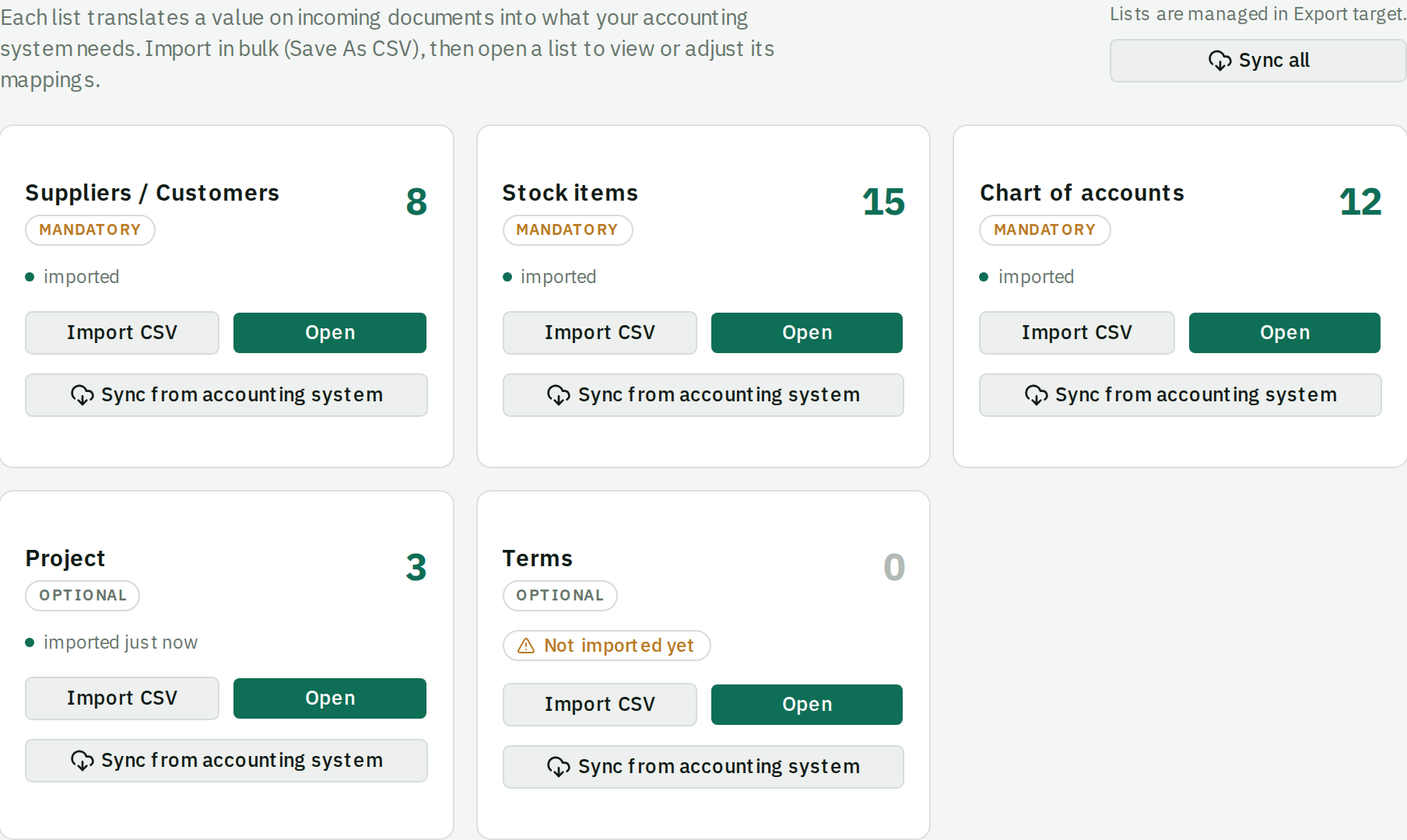
The panel is a grid of cards, one per list, each showing how many rows it holds. Open a card to view, search, edit or delete its rows; import or sync it from the card itself.
Your lists belong to the accounting system, not to one document format. One SQL Account company file has one supplier list, one stock master and one chart of accounts, and both SQL Account document formats read the same rows. Changing the default format in Workflow never empties a list.
Which cards appear depends on the accounting system you chose:
| List | Needed in beres for |
|---|---|
| Suppliers / Customers | Every target |
| Stock items | SQL Account — Purchase Invoice (eStream) |
| Chart of accounts | SQL Account — Supplier Invoice (ARAP), AutoCount Cloud |
The Purchase Invoice (eStream) format still uses GL accounts internally, but beres sends a stock item code and SQL Account takes the posting account from that item's stock setup. The chart of accounts must exist in SQL Account; it does not need to be imported into beres for that format.
Those three cards are mandatory. Below them sits one card per optional column you have set to Master data — a payment-terms list, a project list, a currency-rate list. Those are optional, and each shows when it was last imported. See Optional columns.
Option A — import a CSV
The intended path if you are not using the API.
- In SQL Account or AutoCount, open the master list (suppliers, stock items, or chart of accounts) and export it.
- Save it as CSV.
- In beres, open the matching card and choose the CSV.
beres finds the code and name columns from the headers. It only needs two columns — a code and a name or description — and ignores the rest, so you do not need to trim the export.
If the headers are not recognised you will see one of:
- "Couldn't find code/name columns. Found: …"
- "Couldn't find code/description columns. Found: …"
- "Need two columns (a code and a value). Found: …"
The message lists the headers it actually saw. Rename the code column to Code and the name column to Name or Description and re-upload.
"That file has no data rows." means the file had headers only — check you exported the data, not an empty template.
Option B — sync from the API
If you completed Connect your accounting API, use Sync all at the top of the Master data panel, or Sync on an individual card. This pulls the live lists and needs no files. beres also offers the same one-click sync right after a successful Test connection on the Export target panel.
A card only shows a Sync button when your accounting system can serve that list over its API. The rest are CSV-only.
Two limits:
- "Live sync needs a plan with direct API access." — current public plans include API access; if you see this, check your organization's Billing & plan page.
- "Your export target can't read … from the API." — not every list is readable for every target. Import that one as CSV.
If a sync partly succeeds you get "Couldn't sync: …" naming which lists failed. The lists that worked are still updated; retry the named ones.
Option C — add rows by hand
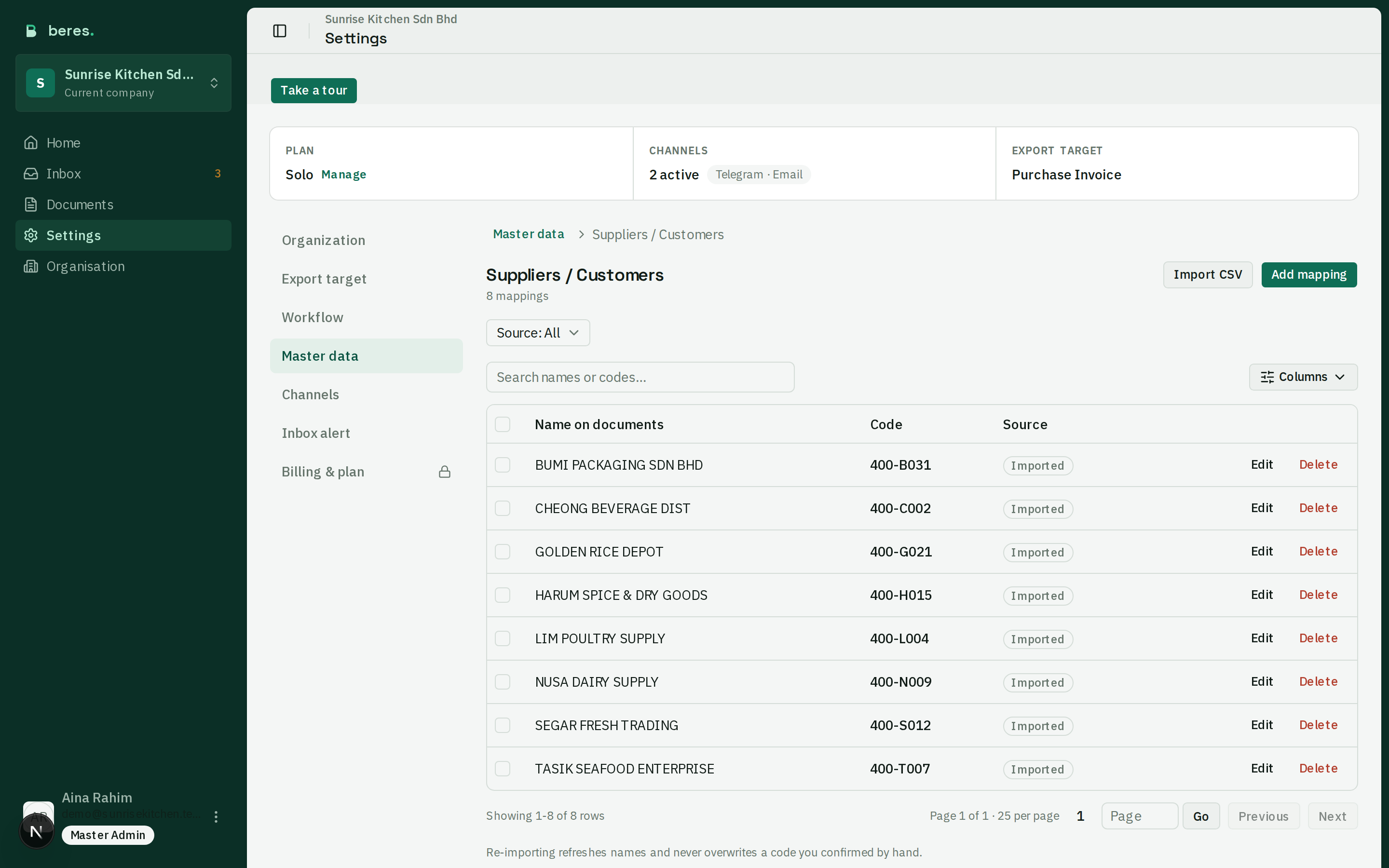
Open a card and add, edit, or delete rows directly — including deleting several at once by ticking them. Fine for a handful of suppliers; painful past a few dozen.
A supplier or item row maps a name on documents to the code your accounting system uses. A reference-list row is a match value and an export value. Every list can be filtered by source, so you can see at a glance which rows came from an import and which a person confirmed.
The rule that matters: your corrections win
Rows you import or sync are marked as imported. Rows created when a person confirms a code during review are marked as confirmed.
Re-importing refreshes names but never overwrites a code that a person confirmed during review.
This is deliberate. If your accountant decided during review that "Ah Seng Trading" means supplier 400-A003, a later master-data re-import will not undo that decision. You can safely re-import whenever your accounting master data changes.
Check it worked
Send one real document to the bot after importing. If the supplier matches automatically and most lines come back with codes, your master data is doing its job. If everything comes back unmatched, the codes in the CSV are probably not the codes on your supplier documents.
Next: choose how documents arrive — use your document email, connect Telegram, or use both.