7. Optional columns
Extra columns your accounting system supports but doesn't require — Project, Area, Agent, tax code, currency rate. Set these up only if your accounting setup uses them.
Admin only, at Settings → Export target (/settings?panel=target), under Export setup.
Which columns are available depends on the document format. If your books don't use project or area coding, skip this page entirely.
Optional columns export blank until you add them
Mandatory columns always export. Optional ones export blank unless you add them here, so an untouched setup is a safe setup — nothing is being filled behind your back.
Click Add optional column, pick one from the list, and it appears as a row you then configure. The counter reads "N of M added". Remove a column with the ✕ on its row and it goes back to exporting blank.
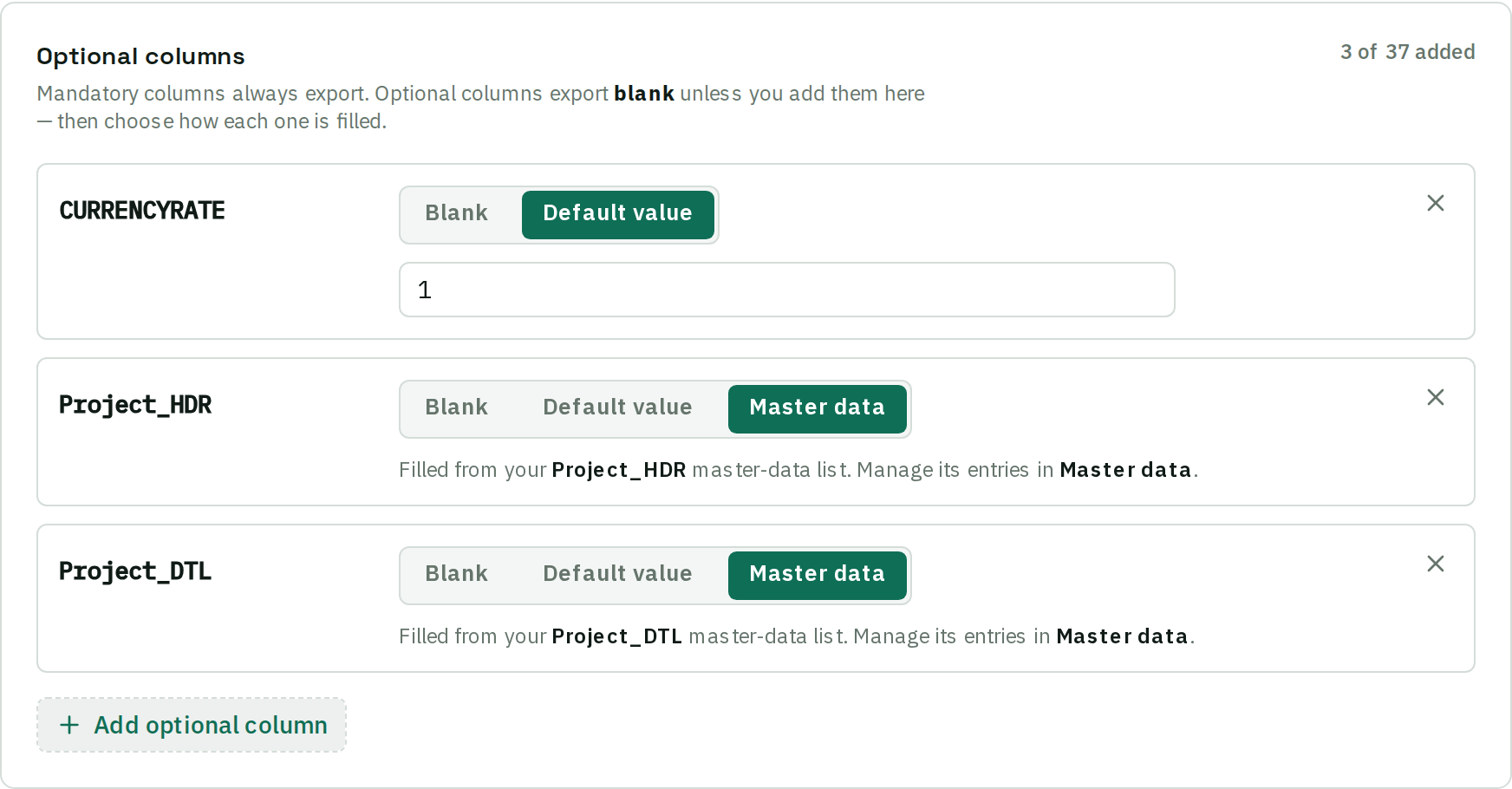
Columns are set per document format
The two SQL Account formats are different import templates with different column names, so each keeps its own selection. Use the Columns for switch above the panel to move between them; the one marked Default is what new documents are prepared as. A system with a single format shows no switch.
Three ways to fill a column
Each added column has a segmented control:
- Blank — the column is written empty. Use this to keep a column listed as a deliberate decision rather than removing it.
- Default value — the same value on every document. Use when your setup requires the field but the answer never varies: one location, one default project code. Where beres knows the valid values — a synced reference list, or a fixed set like Yes/No — this is a dropdown rather than a text box, so you cannot save a value your accounting system would silently drop. A saved value that is no longer in the list is still shown, marked not in list.
- Master data — the value is looked up from a reference list you maintain. Only offered on columns that support a lookup. Use when the value varies per document and you want a controlled set rather than free text.

Paired columns
Some columns are meaningless alone — a tax amount needs the tax code beside it. Adding one of a pair adds the other automatically, and removing one removes the other, so the pair can never be half-configured. A column with a fixed set of values starts on its first, safest option rather than blank.
Setting up a reference list
Set a column to Master data and a new card appears under Settings → Master data for it. Populate it like any other list — CSV import, live sync where the system supports it, or by hand. See Import your master data.
Each entry is a match value (the code beres looks up) and an export value (what gets written). A common use is a currency rate list: a code for each currency and its rate, so foreign-currency invoices carry the right rate without anyone typing it.
Columns that name the same list share it. SQL Account's Project list is one list whether it fills the header or the detail column, and whether the document is prepared as a Purchase Invoice or a Supplier Invoice — import it once.
Where added columns show up in review
An added column becomes editable in Prepare for export:
- Document-level columns appear on the Optional fields tab.
- Columns your accounting system books per line appear as extra columns on the Line items grid instead. The Optional fields tab names them and links across, so a column you enabled never just disappears.
A column your accounting system will not accept empty is marked with an amber ✳, and the document cannot be exported until it is filled. Use Fill column down on the Line items tab to write one value to every row at once.
Advice
- Start with nothing added. Add a column when an import actually fails without it, or when your accountant asks for it. Every column you add is another field someone has to think about on every document.
- Prefer a default value where the answer never changes. A default costs nothing at review time; a master-data list adds a decision per document.
Changing columns later
Changing a column's setting affects exports produced from then on. Documents already exported or pushed aren't retrospectively changed — re-export them if you need the new column on them.