Review a document
Checking what beres read against the original document, and filling in what it couldn't match. This is the one step that needs a person.
Open the workspace
From Inbox, click any document under Needs review. It opens in the same workspace as a batch, holding just that one document.
To review several at once — the faster way — go to Documents, tick the ones you want, and click Prepare for export. You get one workspace holding the whole batch, up to 100 documents.
What you're looking at
- Left — the document rail. Every document in the batch, grouped by supplier, each with a readiness dot and a chip saying what is still outstanding on it. A filter box at the top narrows a long batch.
- Middle — what beres read. A pinned header with the three fields everything else depends on, then two tabs over the same document, then a pinned reconciliation strip.
- Right — the original document. Zoom in to read a smudged total or a handwritten quantity.
The point of the layout is that the original and the extraction sit side by side. Always check against the image, not against what looks plausible.
Both side panels collapse. Use the icons at either end of the document's title bar to hide the rail or the original and give the line grid the full width — useful when a format has many columns.
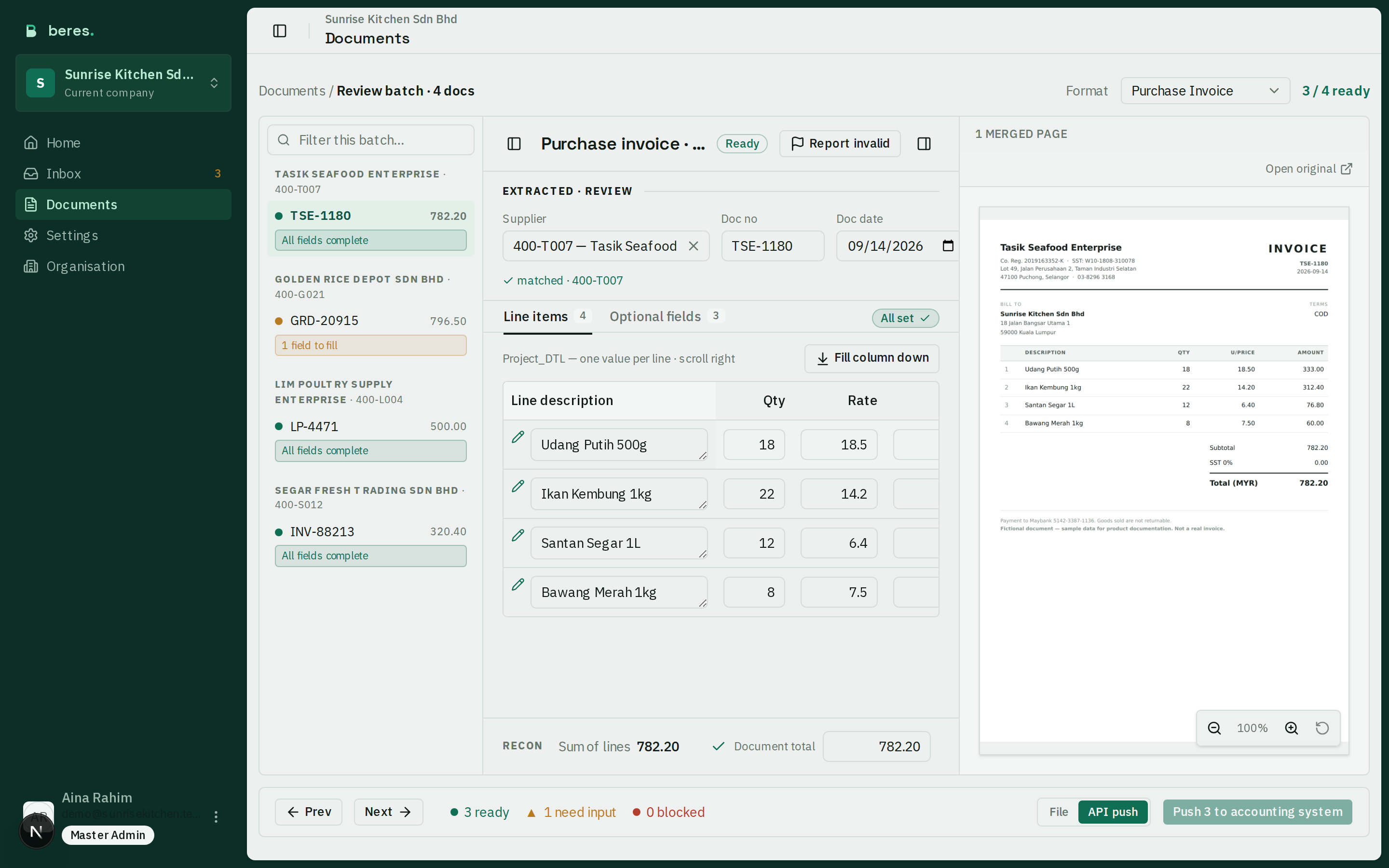
The readiness pill
| Pill | Meaning |
|---|---|
| Ready | Nothing outstanding. Can be exported. |
| Needs input | Some line or field still needs a value. |
| Supplier unmatched | The supplier has no code. Fix this first — nothing else can be resolved without it. |
The header counts them for the whole batch ("7 / 9 ready"), and so does the footer. Every document must be Ready before the batch can be exported.
A document already delivered also carries a Processed badge beside its pill — worth noticing, because pushing it again books a second invoice.
Choose the document format
If your accounting system books documents in more than one way, a Format dropdown sits in the top bar. It applies to the open document, not the batch, so you can send one odd invoice the other way without changing anything in Settings. Apply to all appears when the batch is mixed.
New documents arrive as the default format set in Settings → Workflow. Changing the format changes which columns the document needs, so the tabs below update with it.
Fix the header first
The pinned block holds Supplier, Doc no and Doc date. These are the three the OCR gets wrong most often, and every other answer depends on them, so they never scroll away.
- Supplier — if it's unmatched you'll see OCR read "…" — pick the supplier. Choose it from the picker; the list is your own supplier master data. Whatever you pick is remembered, so the next document from that supplier matches automatically.
- Doc no — editable, because the OCR misreads invoice numbers and on a rotated page can pick up the company registration number instead.
- Doc date — beres pins an implausible year to a sensible one and says so in amber underneath. It's a note, not a blocker; editing the date clears it.
If the supplier genuinely isn't in your list yet, add it in your accounting system first, then re-import or sync your master data (Import your master data). Inventing a code here will only fail on import.

The two tabs
A badge beside the tabs reads N required left or All set, and stays visible from either tab.
Line items
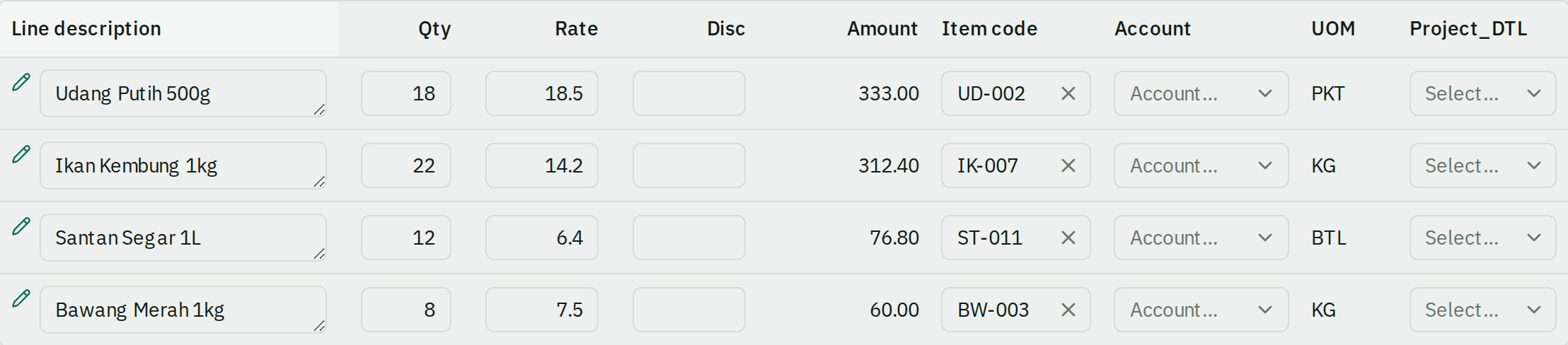
The grid holds the description, quantity, rate, any discount and the amount beres read, plus the code your format needs — an item code on SQL Account Purchase Invoice (eStream) and AutoCount, or a GL account on Supplier Invoice (ARAP) and AutoCount. Any optional column your accounting system books per line is a column here too.
- Amounts recalculate as Qty × Rate, less any discount. beres never sends a discount as a separate field — your accounting system receives the net amount, and the Disc column is there so you can confirm the net being booked is the one the page charges.
- When a line carries tax that your chosen columns have nowhere to hold, the column is headed Amount incl. tax and the figure carries it. Dropping the tax would book the invoice short by exactly that amount.
- Icons at the start of a line tell you where a value came from: ⚠ a warning worth checking, ✨ something beres filled in from what it has learned, and ✎ "Item code confirmed by you — using your saved mapping". The last one you can trust.
- A column marked with an amber ✳ is one your accounting system will reject empty. The document stays blocked until it is filled.
- Fill column down writes one value to every row at once — a real invoice usually books one account and one project for all of it.
- A long line description is cut to what your accounting system actually stores. beres shows the limit as you type, so you choose the wording rather than discovering the cut after the import.
Optional fields
The document-level fields your format needs — payment terms, a default GL account, and any optional columns you added in Optional columns.
The Default GL is a fallback: it books every line you didn't give its own account on the Line items tab, so it is only required while some line is still unmapped.
When the batch holds several documents from the same supplier, Copy to all docs (or Copy to <supplier>) applies this document's export fields to its peers in one go. Review fields — supplier, dates, lines and totals — are never copied.
Columns your accounting system books per line aren't on this tab; a line beneath the card names them and links across to the grid.

Watch the reconciliation strip
Pinned below the tabs, so it is visible from both: Sum of lines, any tax added on top, any rounding, and the Document total — which is editable, because the printed total is what the export books as the header amount.
A ✓ means it adds up. A ▲ means it doesn't, and that usually means a quantity or rate was mis-read — check those against the image rather than editing the total. Whether a mismatch blocks the export depends on your Workflow setting.

Working through a batch
- Prev and Next in the footer step through the batch; switching document keeps you on the same tab.
- The footer's N need input is a button — it jumps straight to the first field that actually needs attention, skipping everything already resolved. On a large batch this is much faster than scrolling.
- Changes save automatically. Watch for the Saving… / Saved indicator; there is no save button.
Reviewing a merged document
beres automatically detects when separate uploads belong to the same multi-page document and combines them. A merged document shows its page count above the original. Use the page controls or the left and right arrow keys to move through the originals while reviewing the combined entry.
If separate photos overlap and the same lines were counted twice, choose Re-read pages. This reads every page together and uses one extraction from your allowance. If beres joined unrelated pages, choose Unmerge pages to restore each one with its previous extraction. Both actions discard unsaved review edits.
See Correct an automatic page merge.
When a document is unusable
Junk, a blank page, a photo too blurred to read — don't force codes into it. Use Report invalid in the document's title bar. Support reviews it and, if confirmed, credits it back so it doesn't count against your monthly allowance. See Report an invalid document.
When everything is Ready
Export or push the batch from the footer. See Export to your accounting system.
Why bother correcting rather than working around
Every code you confirm here is saved and reused. A supplier you match by hand today matches itself tomorrow; a confirmed unit price is later used to catch a mis-read rate on a different document. Reviewing thoroughly in the first weeks is what makes later weeks fast. See How beres learns.