2. Choose your export target
Your export target is the accounting system beres prepares documents for. It decides which fields are mandatory, which master-data lists you need, and whether entries can be pushed over the API.
Admin only. Go to Settings → Export target (/settings?panel=target).
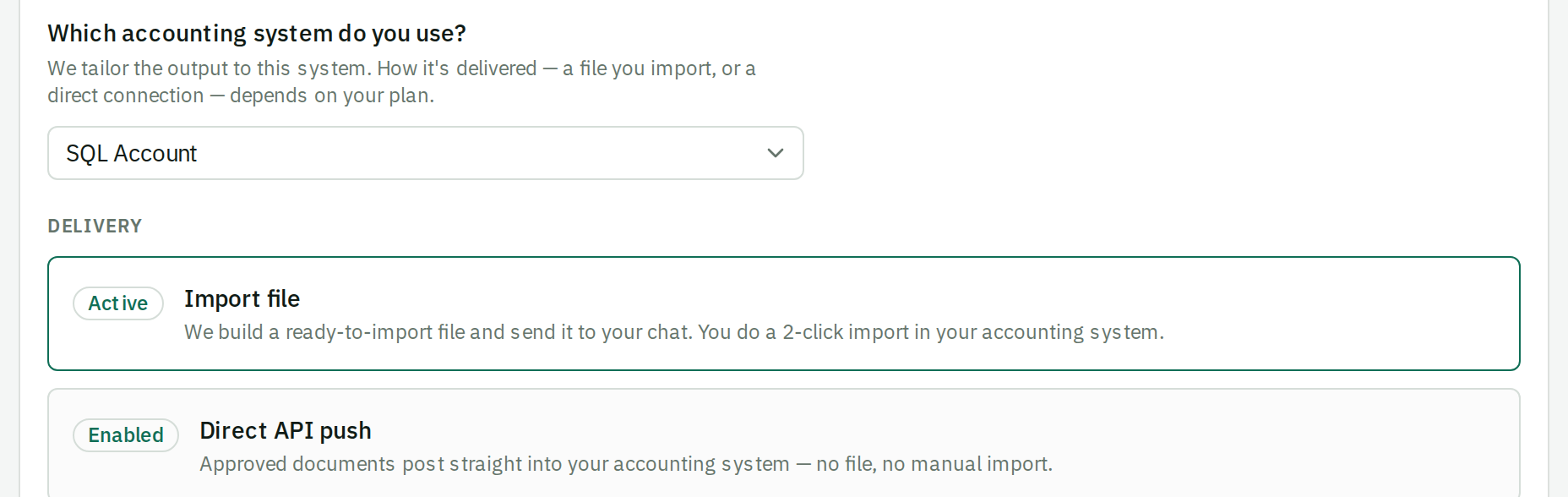
System first, then format
There are two choices, and they live on two different panels:
- Which accounting system do you use? — on this panel. One dropdown: SQL Account or AutoCount Cloud. This is what your credentials and all your master data belong to.
- Which document format new documents are prepared as — on Settings → Workflow. Only SQL Account offers a choice; AutoCount Cloud has one format.
The systems and their formats
| System | Document format | Delivery | Books lines by | Import chart of accounts into beres |
|---|---|---|---|---|
| SQL Account | Purchase Invoice eStream |
Excel import file, or API push | Stock item code | No — SQL Account gets the posting account from the stock item setup |
| SQL Account | Supplier Invoice ARAP (IV / DN / CN) |
Excel import file, or API push | GL account | Yes |
| AutoCount Cloud | Purchase Invoice | API push only | GL account | Yes |
Purchase Invoice (eStream) still posts to your general ledger. The difference is where the account comes from. beres sends the stock item code, and SQL Account gets that item's purchase account from its maintained stock group or item setup. You therefore need a chart of accounts configured in SQL Account, but you do not need to import that chart into beres for this format.
Which format to pick
- Purchase Invoice (eStream) — you track stock. Each line on a supplier invoice maps to a stock item code, and quantities move your inventory.
- Supplier Invoice (ARAP) — you do not track stock at line level. Lines are grouped by account, so a single invoice can collapse into a few expense lines. Common for F&B where you book "Food Purchases" rather than 40 individual ingredients. You can still keep every line visible — see Itemise detail lines in Workflow.
If you are unsure, ask whoever maintains your books which screen they currently key purchase invoices into.
You don't have to choose once and for all. The Workflow panel sets the default, and a reviewer can send any single document as the other format of the same system straight from Prepare for export.
Set up the columns for each format
Below the system dropdown, the Export setup section configures the columns beres writes. The two SQL Account formats are different import templates with different column names, so this section has a Columns for switch — pick a format, set its columns, and save. The format you set as the default is marked. See Optional columns.
Formats that book by GL account also show whether your chart of accounts has been imported, with a link straight to the import if it hasn't.

Change the system
Pick the system from the dropdown and save.
Two things to know before switching:
Master data belongs to the accounting system, not the format. One SQL Account company file has one supplier list, one stock master and one chart of accounts, so switching between Purchase Invoice and Supplier Invoice keeps every list intact. Switching to a different system is what gives you empty lists — those are separate books, and you import master data again for the new one. Switching back restores the original lists; nothing is deleted.
AutoCount Cloud is push-only. It needs saved API credentials because there is no import-file option. If your plan does not include direct API push, the system is shown as locked in the dropdown. API push is included on every current public plan.
After choosing
- Pushing over the API? Continue to Connect your accounting API.
- Downloading import files only? Skip ahead to Import your master data.
- Then set the rules for each format in Workflow.